Introduction to JobAssist
JobAssist is a secure, local-first desktop application designed to automate and streamline your job application workflow. By combining a fully-functional browser with intelligent autofill capabilities, JobAssist helps you apply to more jobs in less time while keeping your sensitive data completely private.
Privacy First
All your data—profiles, resumes, credentials—is stored locally on your machine. JobAssist never uploads your personal information to any external server.
Key Features
Intelligent Autofill
Automatically fill complex application forms in seconds using fuzzy matching technology.
Integrated Browser
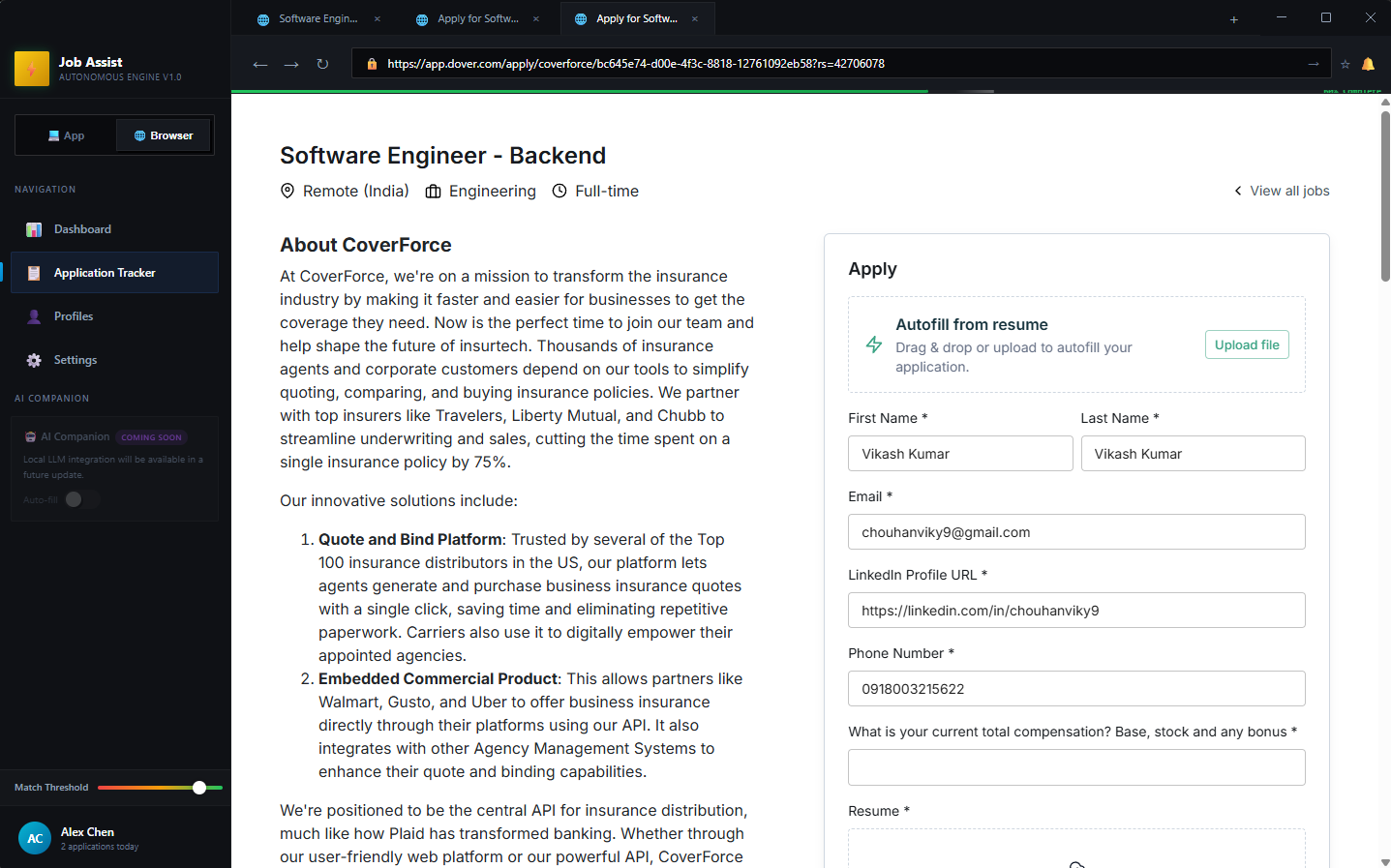
Built-in browser with ATS detection for Workday, Greenhouse, Lever, and more.
Application Tracker
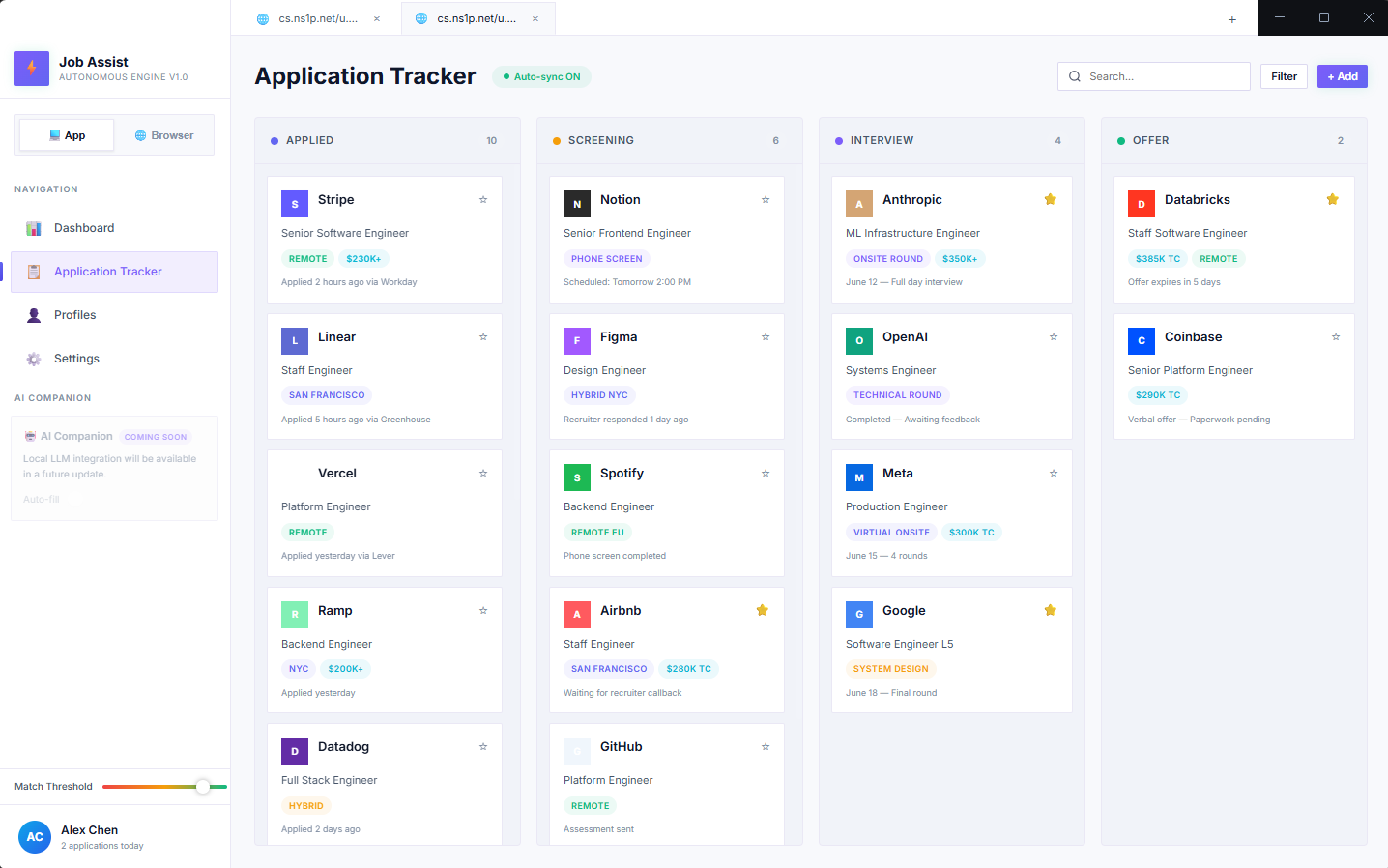
Visual Kanban board to manage your applications from Applied to Offer.
Profile Management
Store all your professional info in one place—update once, autofill everywhere.
Installation
JobAssist is available for Windows and macOS. Download the installer for your operating system and follow the steps below.
Windows Installation
- Download the
JobAssist-Setup.exefile - Double-click the installer to run it
- Follow the installation wizard prompts
- Launch JobAssist from the Start Menu or Desktop shortcut
macOS Installation
- Download the
JobAssist.dmgfile - Open the DMG file and drag JobAssist to your Applications folder
- Right-click the app and select "Open" (first time only, to bypass Gatekeeper)
- JobAssist is now ready to use
System Requirements
Windows 10/11 (64-bit) or macOS 11+ (Big Sur or later). 4GB RAM minimum, 8GB recommended. 500MB disk space.
Quick Start Guide
Get up and running with JobAssist in under 5 minutes. Follow these steps to set up your profile and make your first autofill.
Set Up Your Profile
Navigate to the Profiles tab and fill in your personal information, work history, and education. The more complete your profile, the better JobAssist can autofill applications.
Navigate to a Job Application
Switch to the Browser tab and navigate to a job posting. JobAssist automatically detects supported ATS platforms and shows a notification when autofill is available.
Click Autofill
When you're on an application page, click the "Autofill" button in the toolbar or use the keyboard shortcut Ctrl+Shift+A (Windows) or Cmd+Shift+A (Mac).
Review and Submit
Review the autofilled information, make any necessary adjustments, and submit your application. The job will automatically be added to your Application Tracker.
Application Tracker
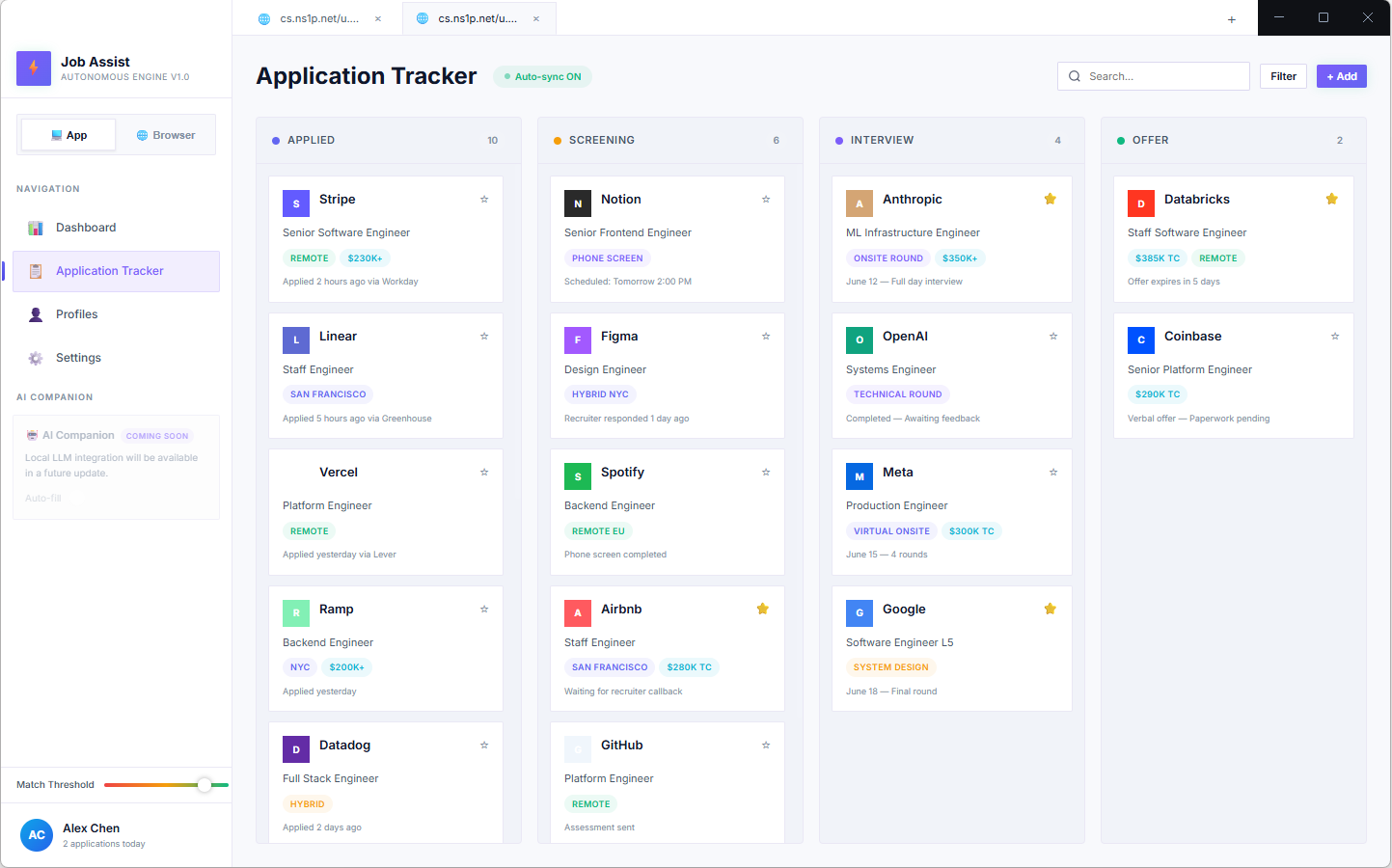
The Application Tracker is a visual Kanban board that helps you manage your job applications through every stage of the hiring process.
Stages
Applied
Applications you've submitted
Screening
Initial recruiter screening
Interview
Interview rounds in progress
Offer
Received an offer
Drag and drop cards between columns to update their status. Click on any card to view details, add notes, or update salary information.
Keyboard Shortcuts
| Action | Windows | macOS |
|---|---|---|
| Trigger Autofill | Ctrl+Shift+A | ⌘+Shift+A |
| New Tab | Ctrl+T | ⌘+T |
| Close Tab | Ctrl+W | ⌘+W |
| Switch to Dashboard | Ctrl+1 | ⌘+1 |
| Switch to Browser | Ctrl+2 | ⌘+2 |
| Open Settings | Ctrl+, | ⌘+, |